

- Nothing to install for your readers. No app, no account, no sign-up. A link opens the draft.
- One link per person. Every link carries the reader’s name, so you always know whose note is whose — and you can switch off one link without touching anyone else’s.
- Private by design. Your pages and every note are encrypted on your Mac before they leave it. Inkwell’s servers store them, but can’t read them.
- You know when it’s been read. See when each reader opened the draft, how far they got, and whether they finished.
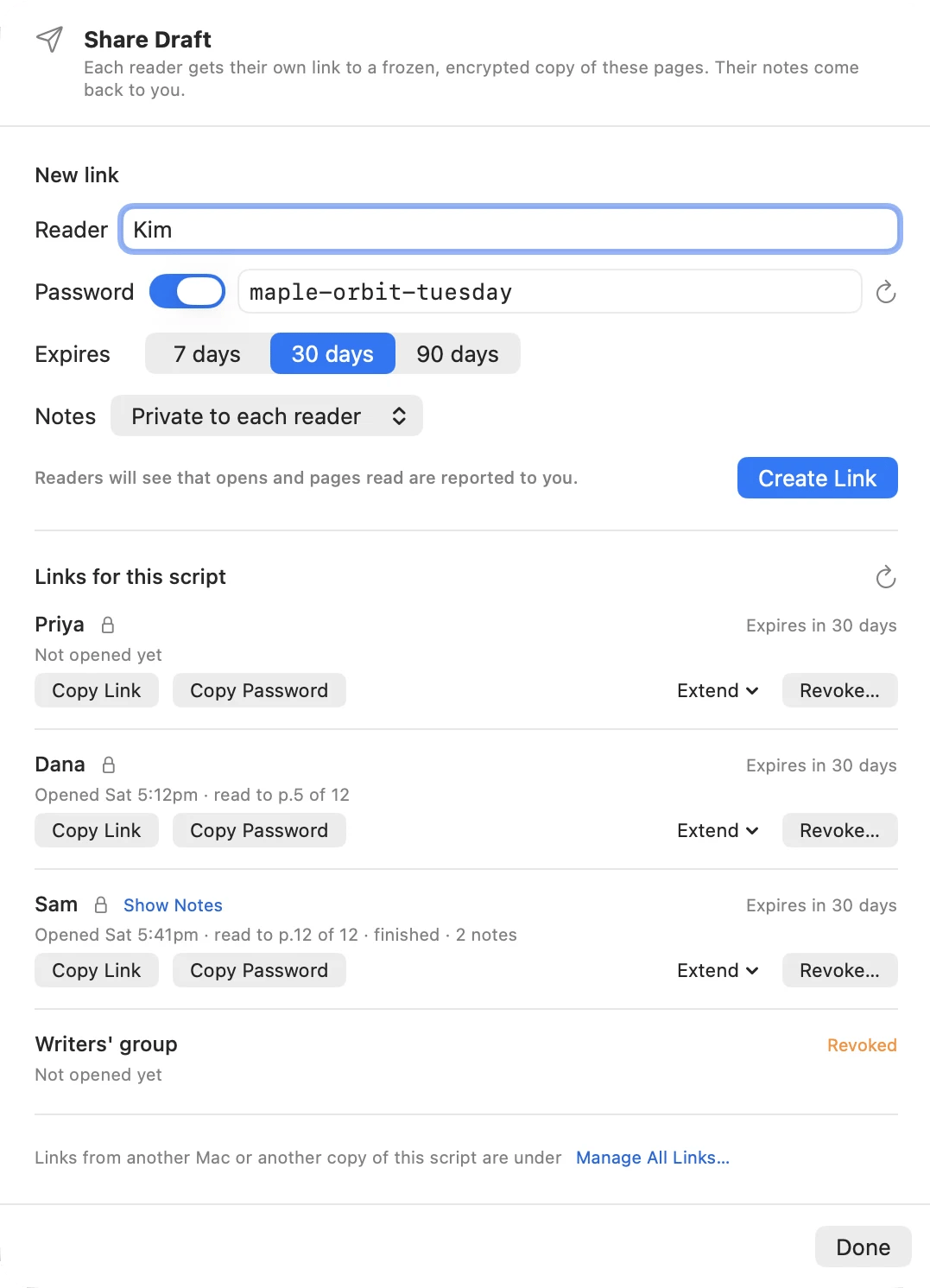
One link per reader, each with its own name, passphrase and expiry.
Before you start
- Sign in to your Inkwell account. If you aren’t signed in, the Share Draft sheet offers Sign In…. Links are tied to your account so you can see who read them and revoke them later. You don’t need to turn on sync.
- Save your script. Shared links are listed under the saved script, so an unsaved, untitled script can’t be shared yet.
- Your readers need nothing at all — just a web browser on a phone, tablet or computer.
Share your draft
1
Open Share Draft
Choose File → Share Draft… (
Cmd+Opt+Shift+S), or click the paper-plane Share button in the window’s top bar, next to the Notes button.2
Name the reader
Under Reader, type who this link is for — “Sam”, “Producer – Dana”, “Writers’ group”. The name appears on every note that reader leaves, and they’ll see it on the cover of the draft (“Jamie shared THE TITLE with you, Sam.”).Make a separate link for each person. That way every note is attributed correctly, and you can revoke one reader’s access without affecting anyone else.
3
Choose a passphrase (optional, recommended)
Require a password is on by default, and Inkwell suggests an easy-to-say passphrase like
maple-orbit-tuesday. Keep it, type your own, or click the refresh button for another suggestion. Turn the switch off if you’d rather the link open on its own.With a passphrase, the link alone isn’t enough to read your draft — someone needs both.4
Pick how long the link lasts
Choose 7, 30 or 90 days under Expires. Links last 30 days unless you change it, and you can extend one later.
5
Decide who sees the notes
- Private to each reader (the default): only you see this reader’s notes, and they only see their own notes and your replies.
- Visible to all readers: this reader sees notes from everyone else whose link is also set to “visible to all” on the same draft, and their notes are visible to them. Good for a writers’ group or a table read.
6
Create the link
Click Create Link. In a few seconds you’ll see Link for Sam is ready, with Copy buttons for the link and the passphrase.
7
Send it
Paste the link into an email, a text, or whatever you use. Send the passphrase separately — if you emailed the link, text the passphrase. That way, anyone who gets hold of one message still can’t open the draft.Click Share With Another Reader to make the next person’s link. Each one gets a fresh passphrase.
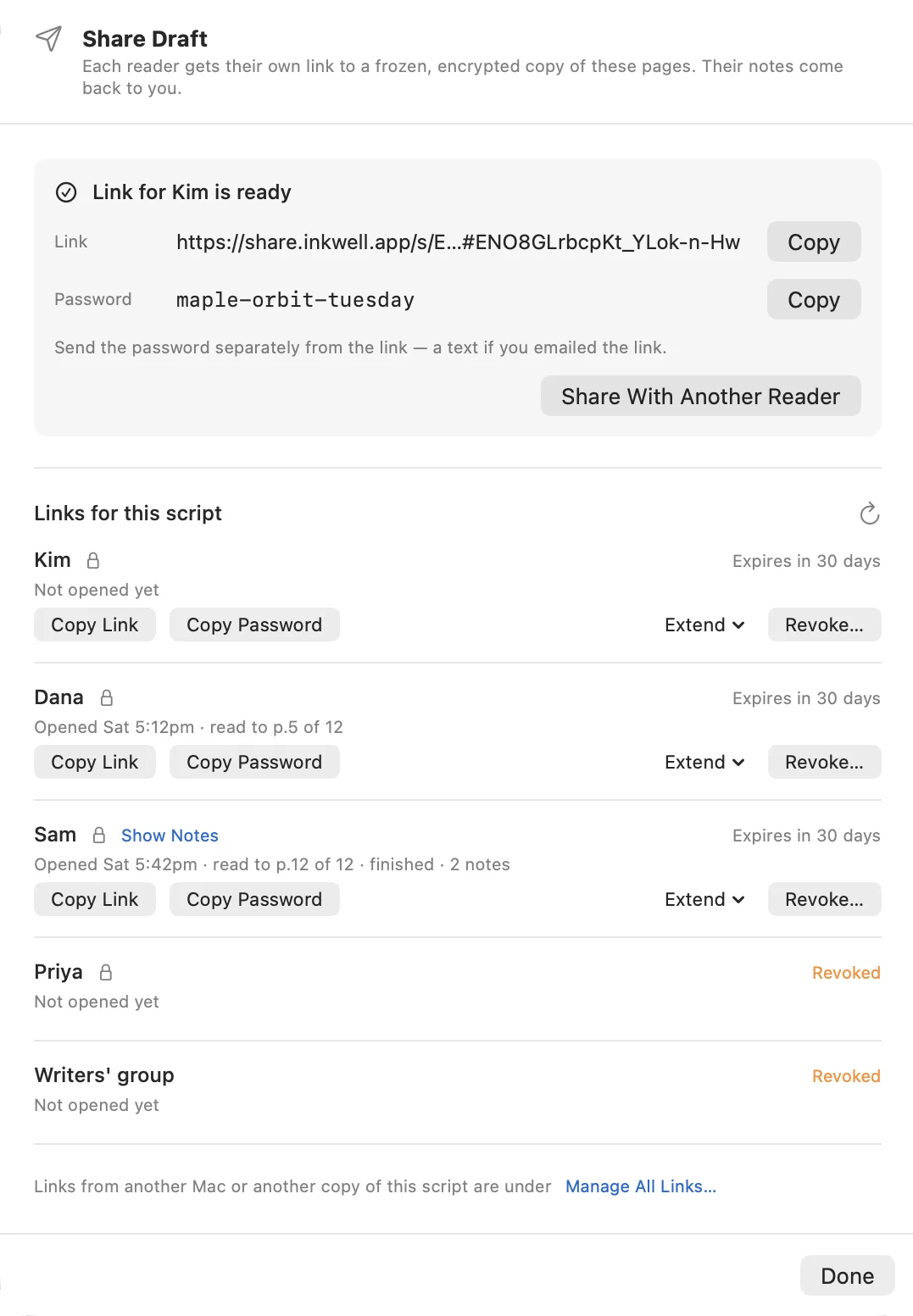
Copy the link and the passphrase, and send them separately.
What your readers get
Your reader opens the link in any browser and sees a cover page with your title, your name and the draft date, then your script, page for page as it would print. Page numbers match your PDF, so “page 42” means the same thing to both of you.- On a computer or tablet they start in Page view: your pages, exactly as printed. On a phone they start in Reading view: one easy-to-read column, with ”— page N —” markers so page numbers still line up. They can switch either way.
- They can jump around with Scenes, change the text size, and switch between light and dark.
- They come back to where they left off.
- To leave a note, they tap or click any line. The note attaches to the whole element: a scene heading, a paragraph of action, or an entire speech.
- The browser tab shows “Draft from your first name”, never your script’s title, and link previews in messaging apps say only “A script draft, shared with you”.
[[notes]], revision marks, Quill’s pending suggestions and authorship history.
The shared copy is a snapshot
When you create a link, Inkwell takes a snapshot of the pages as they are right now. Editing your script afterwards doesn’t change what your readers see — they keep reading the draft you sent, and their notes still make sense. When you’ve done a new pass and want a reader to see it, open File → Share Draft… again. Links whose draft is out of date say You’ve edited the script since this snapshot; click Reshare… to make that reader a fresh link to the current pages, with their name already filled in. The old link keeps working until it expires or you revoke it — revoke it if you’d rather they only read the new version.See who’s read it
Open File → Share Draft… to see every link for this script. Each one shows, at a glance:- whether the reader has opened it, and when (“Opened Tue 3:12pm”);
- how far they’ve read (“read to p.87 of 104”);
- whether they finished;
- how many notes they’ve left, with a badge for new ones;
- when the link expires.
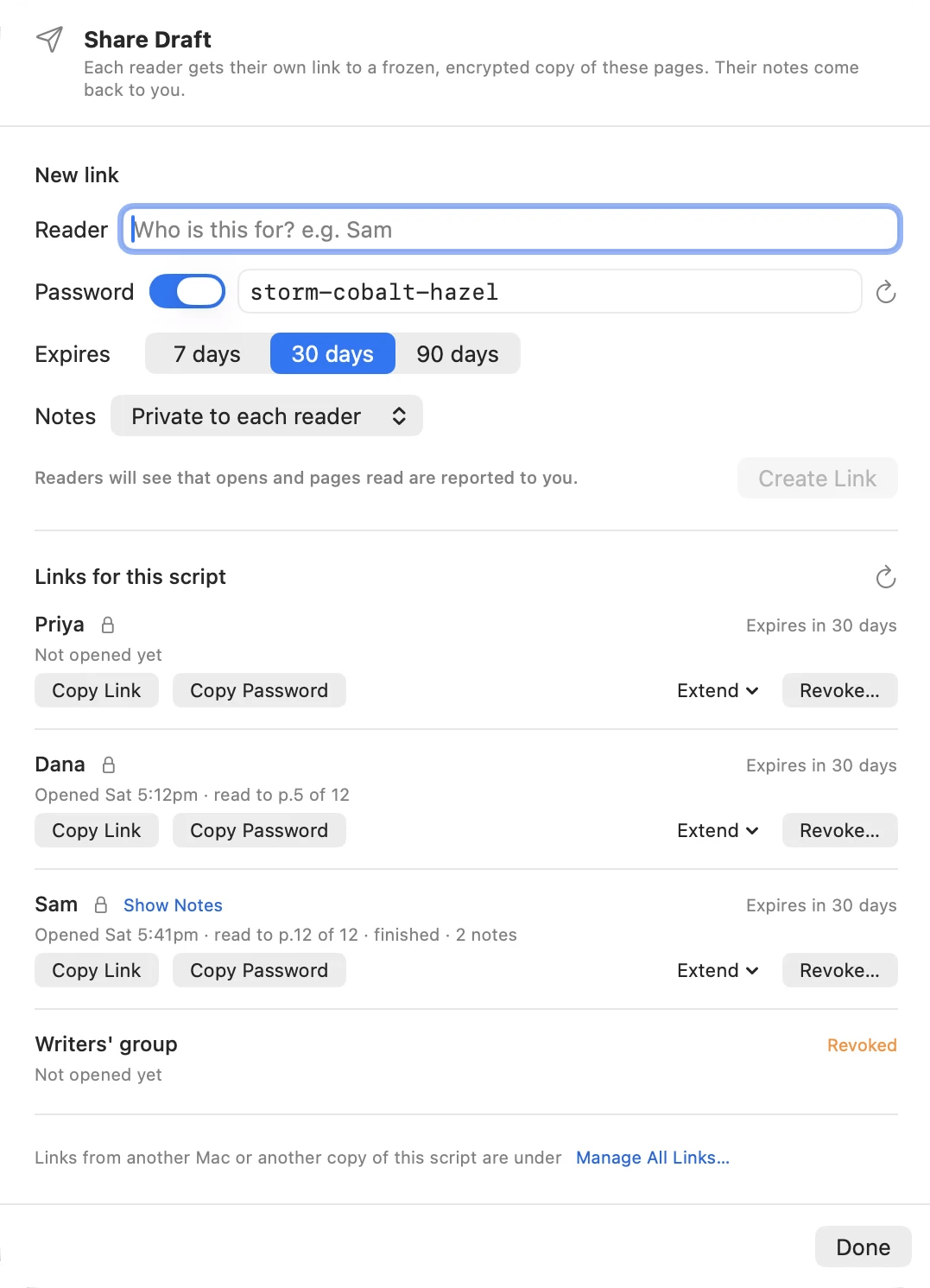
See who opened your draft, how far they got, and which links you've revoked.
Read and answer notes
Notes come back into Inkwell, next to the lines they’re about.1
Open Reader Notes
Choose View → Reader Notes (
Cmd+Opt+N), click the Notes button in the window’s top bar (its badge counts new notes), or click Show Notes next to a link in the Share Draft sheet to see just that reader’s notes (Show All brings the rest back). Manage links… at the top of the panel takes you back to the Share Draft sheet. While your script is open, Inkwell checks for new notes every minute or so.2
Go to the passage
Each note shows the reader’s name, the page it was left on, and the passage. Click a note to jump to that passage in your script. Passages with notes also get a small mark in the right margin of the script; click it to open the note. A note counts as read once you’ve looked at it in the panel, on any of your Macs.
3
Reply, resolve or delete
- Reply — your reply appears under their note on the shared page, labelled as from the writer. If they have the page open, they’ll see it within a minute; otherwise it’s waiting for them, marked New reply, next time they visit.
- Resolve — mark a note as dealt with. The reader sees it marked resolved by the writer. Resolved notes hide from the list; use the button at the top of the panel to show them again. You can Reopen a resolved note at any time.
- Delete Thread — removes a reader’s note and every reply under it, here and on the reader’s page. To remove just one of your replies, click the trash icon beside it. Inkwell asks first either way.
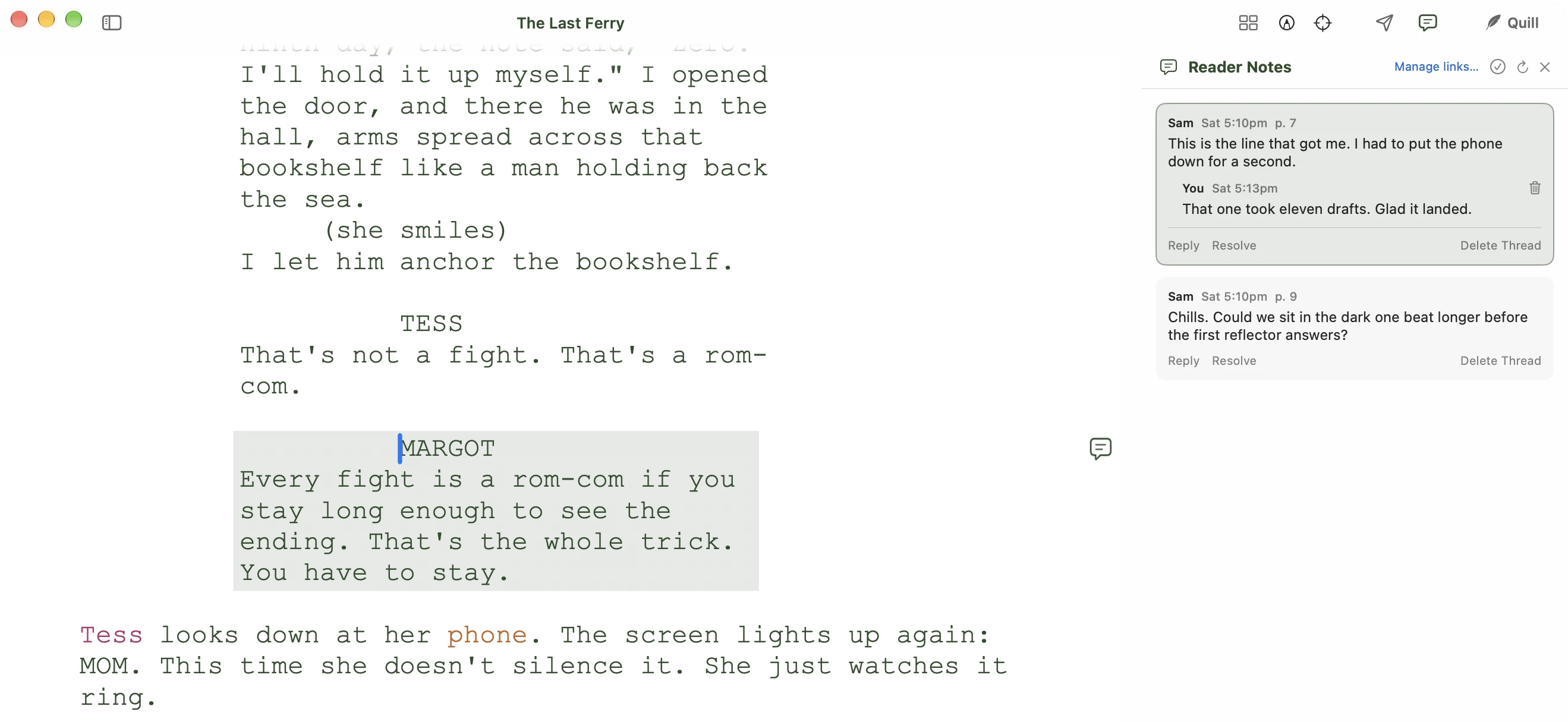
Sam's notes beside the script, with the passage highlighted and your reply in the thread.
.ink file and its authorship history are never changed by a reader’s note, a reply, or resolving one.
Extend or revoke a link
In File → Share Draft…, each link has:- Extend — keep it open for another 7, 30 or 90 days from today. A link that has just expired shows Reopen instead, for a couple of weeks after it lapses.
- Copy Link / Copy Password — send it again.
- Revoke… — close the link for good. The reader sees This draft is no longer shared next time they open it. Notes they already left stay with you. A revoked link can’t be switched back on; make the reader a new one instead.
How many links can I have?
Only active links count. When a link expires or you revoke it, its slot is free again. If you hit the limit, Inkwell tells you and offers Manage Links… so you can revoke one you no longer need — or upgrade to Quill Pro.
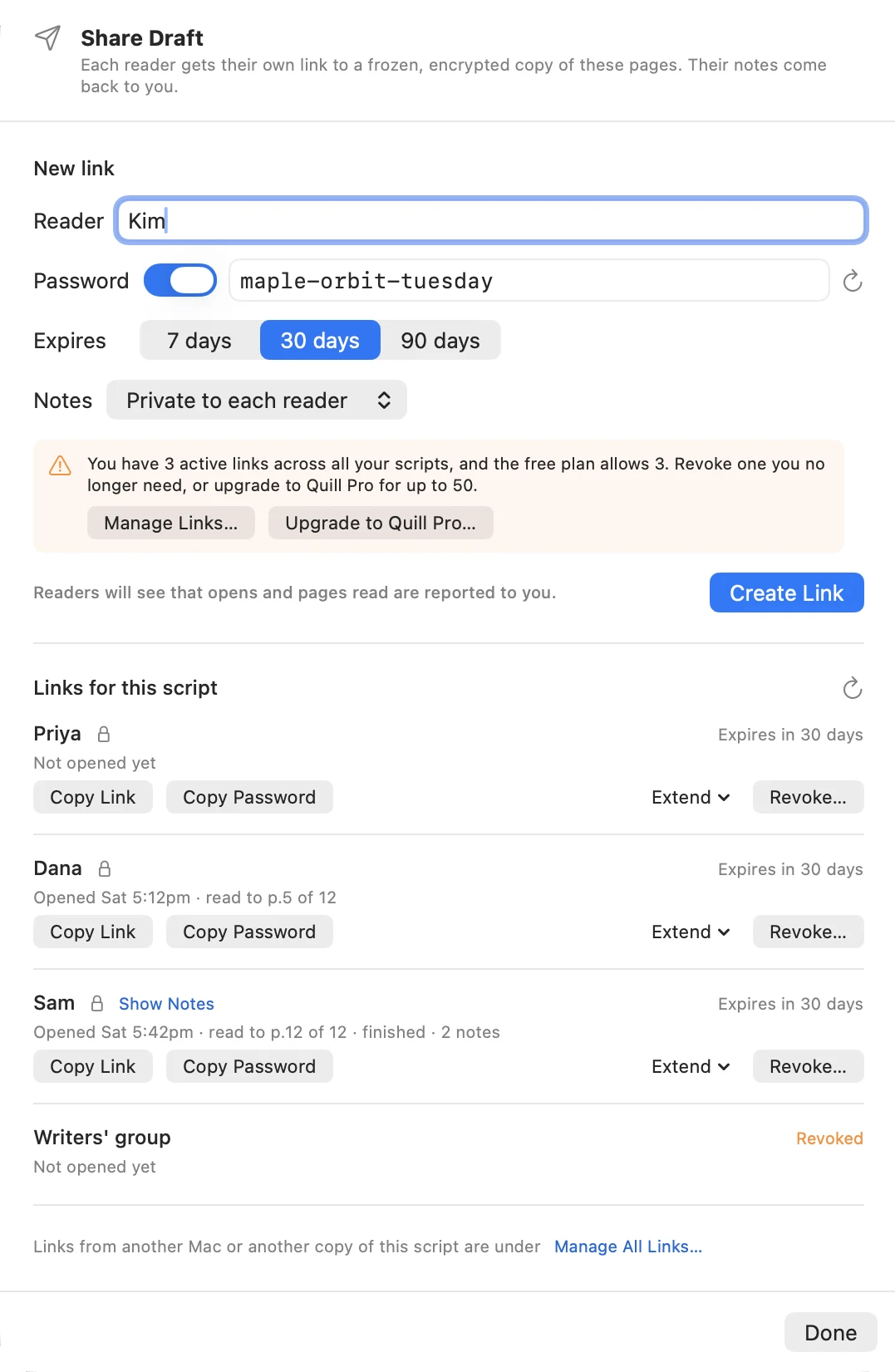
On the free plan, a fourth link asks you to free a slot or upgrade.
Privacy and security
Share Draft is built so that only you and the people you send a link to can read your draft.- Encrypted on your Mac. Your pages and every note are encrypted before they leave your computer. The key that unlocks them is in the part of the link after the
#, which web browsers never send to any server. Inkwell stores the encrypted copy, but can’t read your script or anyone’s notes. - A passphrase adds a second lock. On a passphrase-protected link, the link alone won’t open the draft. Wrong guesses are limited, so a passphrase can’t be guessed by trying over and over.
- The reader’s page runs nothing but Inkwell’s own code — no ads, no trackers, no third-party scripts.
- A link works for whoever has it. If a reader forwards their link (and passphrase), the new person can read it — and any notes they leave show up under the original reader’s name. That’s one reason to use a passphrase, and to make one link per person.
- Revoking stops future reading, not past reading. It can’t take back what someone has already read, and a page that’s already open in someone’s browser stays readable until they close it (though they can’t send new notes).
- Reader names aren’t encrypted. The names you give your links are stored on Inkwell’s servers as plain text, so they can be shown on notes. Use a first name or a nickname if you prefer.
How long shared drafts are kept
- The encrypted copy of your draft is deleted 14 days after its last link expires or is revoked. (The two weeks gives you time to reopen a link that lapsed by accident.)
- The notes, link names and read receipts are kept another 90 days after that, so late notes still reach you — then they’re deleted too, and nothing of that share remains on Inkwell’s servers.
- Notes you’ve already pulled into Inkwell stay on your Mac.
Not yet
A few things people ask about that Share Draft doesn’t do yet:- Readers can’t sign in or keep a list of drafts shared with them.
- Inkwell doesn’t email you when a note arrives, or email readers when you reply — open Reader Notes to check.
- Links open in a web browser, not in the Inkwell Reader iPhone app.
- You can share from Inkwell on the Mac, not from iPhone.
Next Steps
Opening a shared draft
The page to send your readers
Plans & Billing
Free vs. Quill Pro